 TVC Helium 2026.3.0
<RelationshipField id="connected_part" sectionId="related">
    <Label>Connected Part (EBOM)</Label>
    <Relationship>EBOM</Relationship>
    <Direction>from</Direction>
    <Levels>2</Levels>
    <ConnectedTypePattern>type_Part</ConnectedTypePattern>
    <WhereClause>current == Release</WhereClause>
</RelationshipField>TVC Helium 2026.3.0 Release Information
11 September 2026
1. Search
1.1. Search performance improvement
Previously, NSX built the WHERE clause in the same order as the configured search attributes. As a result, if a complex traversal-based attribute appeared before simpler attributes, it would be evaluated earlier in the generated query. In some cases, this ordering could reduce search performance, particularly when queries involved deep relationship traversals, as the more expensive conditions were processed first.
With this enhancement, NSX automatically optimizes the order of WHERE clause expressions based on their complexity. Simpler conditions are evaluated first, while more complex traversal-based conditions are placed later in the query. This improves search responsiveness and overall query performance without requiring any configuration changes.
1.2. External 6W vocabulary URLs for federated search
The New Search Experience now supports configurable URLs for external 6W Vocabulary API endpoints. Previously, these URLs were hardcoded in the application. With this enhancement, administrators can now customize the endpoints for predicate values, element NLS names, and predicate information from 6W Vocabulary, enabling integration with different 6W Vocabulary instance.
The following properties can be configured in the tvc.properties file:
| Property | Description | Default Value |
|---|---|---|
tvc.core.search.vocab.predicateValueURL |
URL for accessing predicate values from 6W Vocabulary. |
|
tvc.core.search.vocab.elementNLSNamesURL |
URL for accessing element NLS names from 6W Vocabulary. |
|
tvc.core.search.vocab.predicatesURL |
URL for accessing predicate information from 6W Vocabulary. |
|
Read more in Federated Search.
1.3. Relationship field
A new built-in field type RelationshipField has been introduced for the search form. It allows searching for objects connected via a specific relationship.
When a user enters a value in the text input field, the search automatically generates a relationship traversal WHERE clause to filter results to objects connected to matching objects through the configured relationship.
RelationshipField is currently supported for the Enovia search provider only.
|
Key capabilities:
-
Configurable relationship and direction — specify which relationship to traverse and in which direction (
from,to, orboth). -
Multi-level traversal — configure
Levelsto traverse multiple levels deep. When levels > 1, all levels from 1 up to the specified depth are included in the search. -
Type and state filters — optionally restrict connected objects by type (
ConnectedTypePattern) or a WHERE clause (e.g.current == Release). -
Symbolic name support —
ConnectedTypePatternvalues such astype_Partare automatically resolved to their actual ENOVIA names.
Example configuration:
For example, consider the following structure:
Kit A > Kit B > Article C
Assume the search form is used to find Kit objects, and RelationshipField is configured with Levels set to 2 and ConnectedTypePattern set to Article. When the user searches for C, the field matches Article C. Since the search includes all levels from 1 up to 2, the results include both Kit B, which is directly connected to Article C, and Kit A, which is connected through Kit B.
As we increase levels there will be impact on the performance.
|
Read more in RelationshipField documentation.
2. In-App Designer
In-App Designer is a concept that brings the idea of creating configurations using the built-in admin user interface. These configurations can be used to define Helium dashboards, widgets, tables, charts, etc. Built-in Admin UI is provided to create, modify and share these configurations. For detailed information, please refer In-App Designer.
2.1. Auto share active configurations
In the In-App Designer, config-admins create and promote configurations to an active state, then explicitly share them with end users. End users must then accept the shared configuration before they can use it. This share/accept workflow provides control over configuration distribution but adds extra steps.
A new setting tvc.core.inappdesigner.activeConfigs.autoShare (default false) has been introduced to simplify this process. When enabled, active admin configurations are directly accessible to all users without requiring the explicit share/accept workflow.
When this property is set to true, the share menu will not be available in the tabs of the Configuration Admin page, as the manual sharing step is no longer needed.
Use the following setting in tvc.properties:
tvc.core.inappdesigner.activeConfigs.autoShare = true
Read more in Auto Share Active Configurations.
3. Form
3.1. Security context field
A Security Context in 3DEXPERIENCE represents the active combination of a user’s Role, Organization, and Collaborative Space. It defines the permissions, responsibilities, and working environment under which a user performs actions on the platform. Security Context is a fundamental concept in 3DEXPERIENCE because it governs who can perform an action, where the action is performed, and what data can be accessed.
Helium supports object creation through configurable forms, where form fields can be used to capture object attribute values during the creation process.
This release introduces support for a <SecurityContext> field in forms. Users can view available security contexts in the format Role.Company.Organization and select the appropriate context during object creation. The selected security context is then applied when the object is created through form submission.
Security Context field can be configured as shown below:
<Form>
	<Title>Create Part</Title>
	<Description>Creates a new Part...</Description>
	<Section>
		<SecurityContext id="securityContext">
			<Label>Security Context</Label>
			<Editable>true</Editable>
			...
		</SecurityContext>
	</Section>
</Form>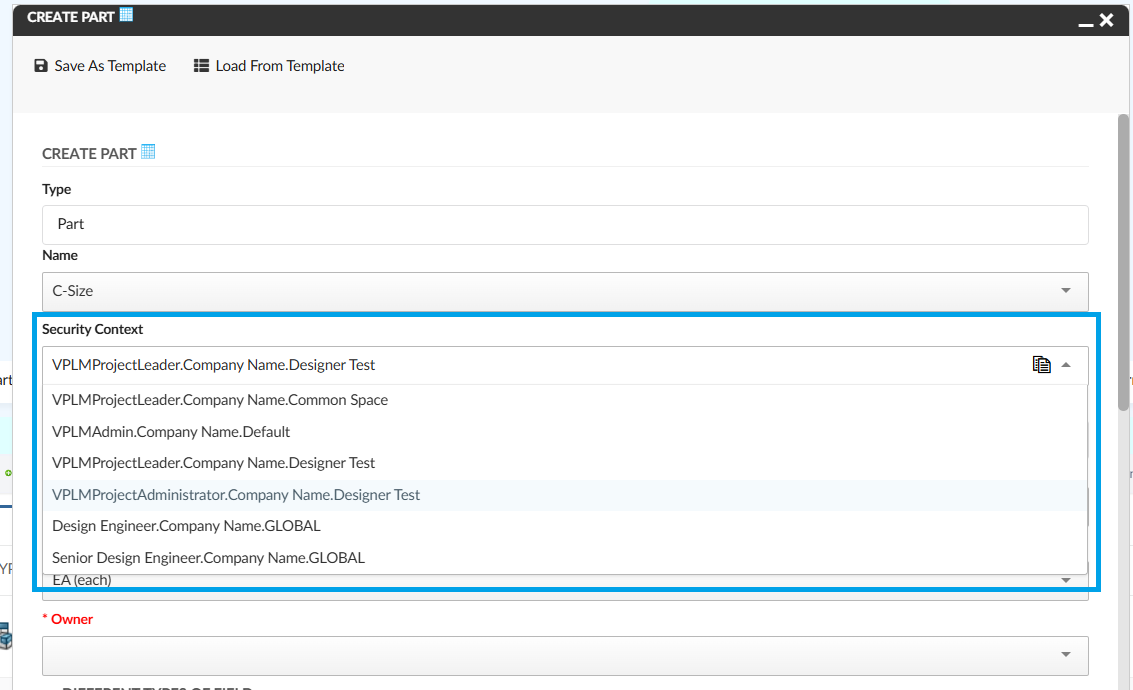
Figure 1. Security Context field
Read more about Form for more details.
4. Datatable
4.1. Classic file action mode for files column
The helium-files column type provides built-in file management actions (download, checkout, lock, upload, preview, delete) directly within table cells. By default, the files column combines download and checkout into a single action button whose behavior varies depending on whether the file is in CDM mode.
With this release, a new classicFileActionMode setting has been introduced to align the files column with the TVC Classic file action model. When enabled, three separate and dedicated action buttons are displayed:
-
Download – Only downloads the file without opening it.
-
Open – Downloads and opens the file in read-only mode.
-
Edit – Locks the file and opens it in editable mode.
This provides a consistent and predictable file interaction model that matches TVC Classic behavior.
<Table>
	<Column>
		<Label>Files</Label>
		<ColumnType>helium-files</ColumnType>
		<Setting name="options">
		{
			"classicFileActionMode": true
		}
		</Setting>
	</Column>
</Table>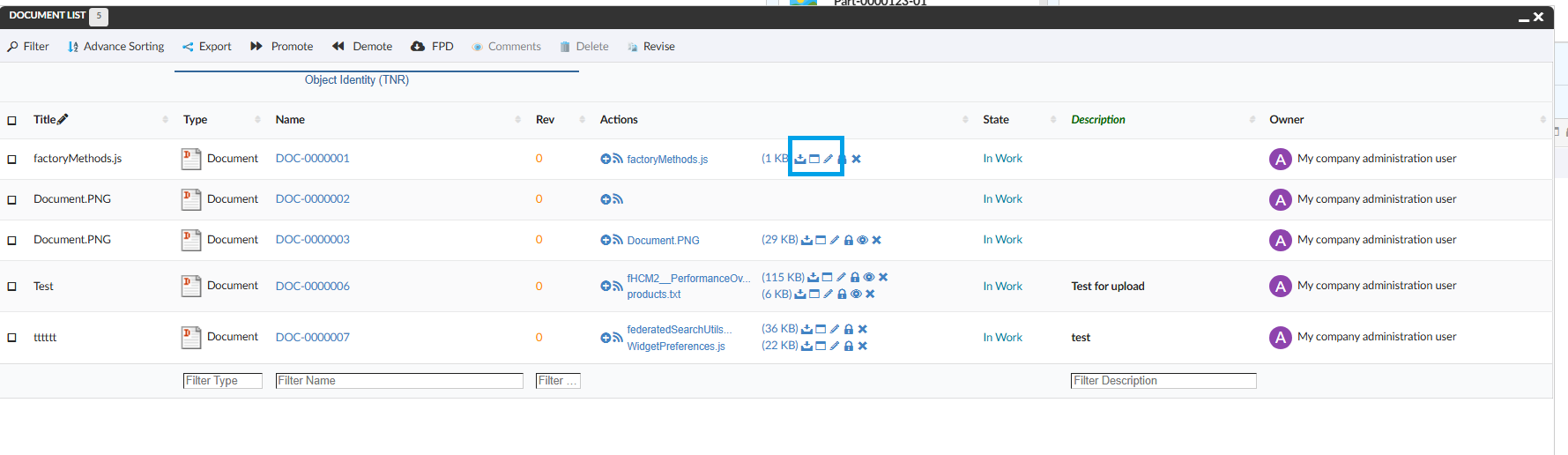
Figure 2. Classic File Action Mode
Read more in Classic File Action Mode.
5. Grid Browser
5.1. Column level filter
Grid Browser now supports column level filtering, allowing users to filter data directly at each column header. This can be enabled by adding the following OnInitOption to the widget configuration:
<OnInitOption name="enableColumnFilter" value="true" />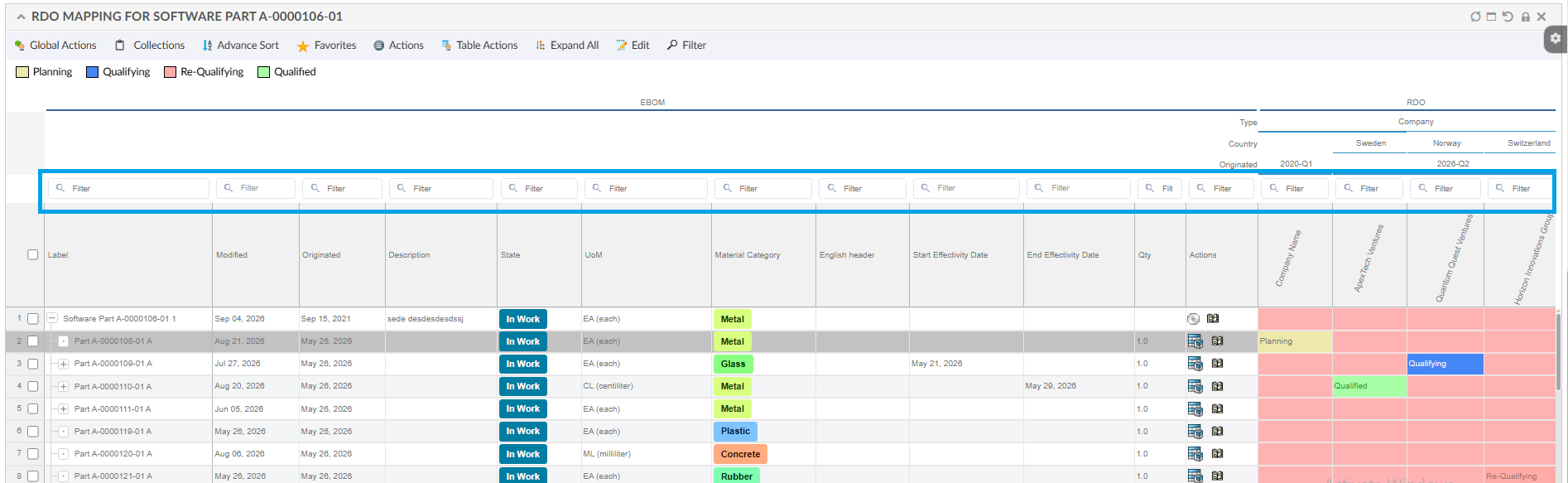
Figure 3. Column Filter
Read more in Column Level Filter.
5.2. Edit filter criteria
The Grid Browser provides a Data Filter feature (configured via the <FilterChooser /> toolbar command) that allows users to filter structured data by specifying one or more filter criteria such as field, operator, and value. Once applied, the matching results are displayed along with a results bar showing the filter summary.
Previously, after applying a filter, users had to clear the existing filter and re-enter all criteria to make any changes. With this enhancement, an Edit button is now available next to the Clear button in the filter results bar. Clicking Edit reopens the filter dialog with the previously submitted criteria pre-populated, allowing users to refine their search without re-entering all values from scratch.
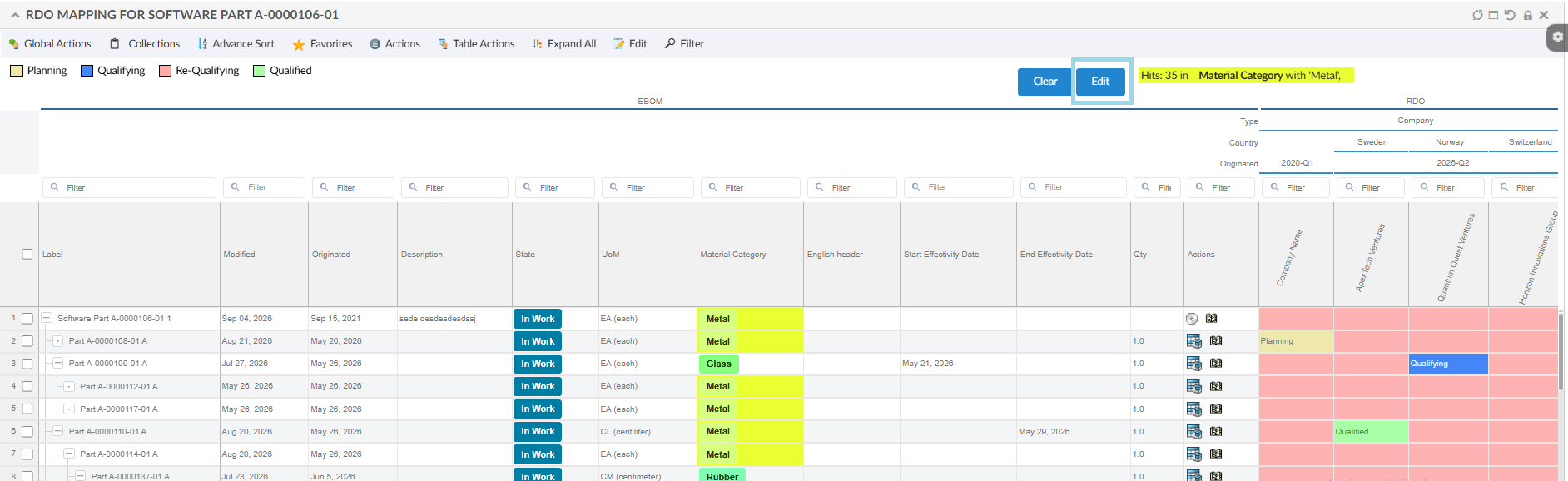
Figure 4. Filter Chooser
Read more in Grid Browser Toolbar - Data Filter.
6. Charts
6.1. Chart legend exclusive mode
Helium supports data visualization through charts. With the introduction of the new chart library, ApexCharts, the legend interaction capabilities have been enhanced.
Previously, clicking a legend item would hide the selected series while keeping the remaining series visible. Starting with this release, an exclusive legend mode is available, where clicking a legend item displays only the selected series and hides all other series. This provides a clearer and more focused visualization of the selected data series.
This behavior can be controlled using the global setting: tvc.helium.chart.legend.ExclusiveMode.
The default value is false, which preserves the existing legend behavior. When set to true, the chart legend operates in exclusive mode, showing only the selected series.
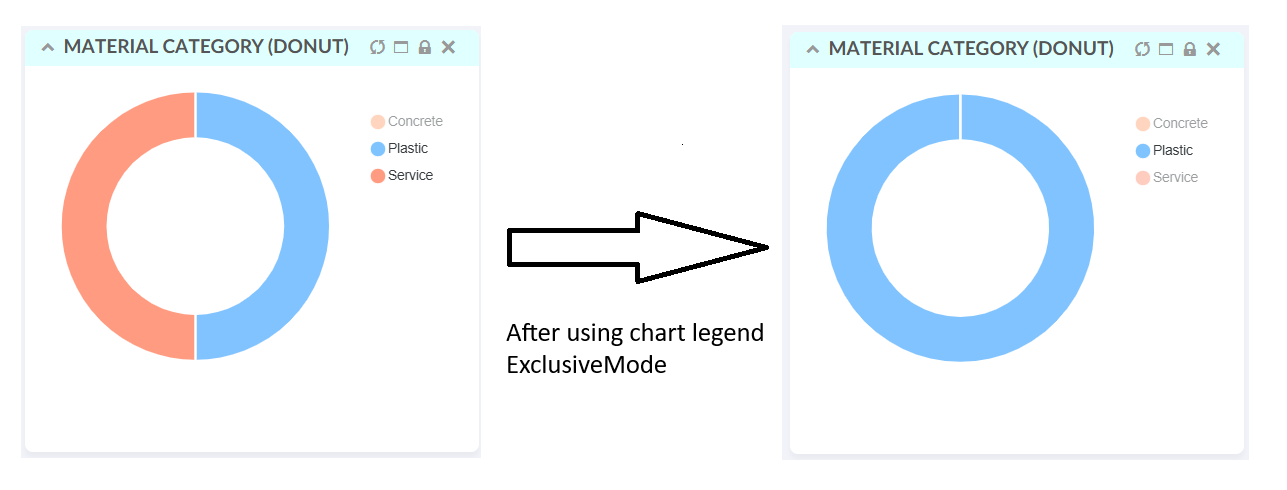
Figure 5. Chart Legend Exclusive Mode
Read more in Chart Configuration.
7. Tabs
7.1. Deeplink to nested tab
Helium currently provides deep link to a specific tab. This capability has been enhanced to support nested tabs as well, allowing direct navigation to parent or child tabs through a deep link.
If an id attribute is appended to the <Tab> element it will be possible to link and navigate to that specific tab.
Root level example:
Configure the tab with an id attribute, for example <Tab id="documents">, and the following link will be accessible:
http://example.com/tvc/goto#documents.
Starting from this release, nested tabs can also be linked by using a path where each path segment matches a tab id at each level.
<Tabs>
	...
	<Tab id="components">
		<Label>tab.custom.components</Label>
		<Tabs>
			<Tab id="ebom">
				<Label>tab.custom.ebom</Label>
				<Tabs>
					<Settings>
					<Orientation>vertical</Orientation>
					</Settings>
					...
					<Tab id="uipFlatTable">
					...
					</Tab>
					...
				</Tabs>
			</Tab>
			...
		</Tabs>
	</Tab>
	...
</Tabs>
For the above configuration, the following deeplink can be used:
http://example.com/tvc/goto#components/ebom/uipFlatTable.
Deeplinking supports both root (top level) tabs and child tabs.
Read more in Deeplinking to a tab.
8. Export
8.1. Excel export format extension
Helium supports the Export to Excel functionality, allowing users to export data of datatable in Excel format.
Starting from this release, a new global setting tvc.helium.exportExcel.enableXLSXFormat has been introduced to control the file format of Excel exports, allowing to configure XLSX or XLS formats.
By default, the value is set to true, which exports files in the .xlsx format. If the value is set to false, the exports will be in .xls format.
9. Service Toolbar
9.1. Service command
The Service Command enables forms and other UI components to invoke a service endpoint directly using a configured OOTB service URL defined in the Resolver Paths configuration. By default, the context URL is prefixed to the configured URL, which can then be used in a Form to submit and process the data.
In some cases, Resolver Paths need to call an external resource where the context URL should not be prefixed. This can be achieved using a custom function. With this enhancement, Helium now supports custom functions, providing greater flexibility when calling external services. You can use either a URL configured in Resolver Paths or a custom function to submit data to the OOTB service.
The example below illustrates how to use custom function as URL.
<ServiceCommand>
	<Label>External Service</Label>
	<Setting name="OnClick" value="App.dataTable.invokeServiceCall" />
	<Setting name="OnClickParams">{
		...,
		 "form": {
			...
			"url": "App.hex.updateExternalUserData",
		}
	}</Setting>
	...
</ServiceCommand>
Read more about Service Command for more details.