 TVC Classic - 2026.3.0
tvc.core.user=User Agent
tvc.core.encryptedPassword=encrypted-password-valueTVC 2026.3.0 Release Information
11 September 2026
Table of Contents
1. Core
1.1. Support for encrypted password
Modern 3DEXPERIENCE enhances security and compatibility by providing support for encrypted passwords. This helps protect sensitive credentials and reduces the risk of exposing passwords stored in configuration files.
During TVC initialization, you can now configure the password in encrypted form instead of plain text, improving security for credentials stored in configuration files.
Password can be encrypted with the help of MQL query encrypt password "YourPassword"
Use the new tvc.core.encryptedPassword setting in either tvc.properties or as an init-param in web.xml.
Example using tvc.properties:
Example using web.xml:
<init-param>
    <param-name>tvc.core.user</param-name>
    <param-value>User Agent</param-value>
</init-param>
<init-param>
    <param-name>tvc.core.encryptedPassword</param-name>
    <param-value>encrypted-password-value</param-value>
</init-param>| Existing plain text password configurations remain fully supported, ensuring backward compatibility while enabling the use of the enhanced functionality. |
2. Mail Configuration
2.1. SMTP authentication support
This release introduces comprehensive support for SMTP authentication mechanisms, including modern authentication mechanisms such as XOAUTH2. This enhancement allows TVC to securely send emails via providers that require token-based authentication or app-specific passwords, such as Gmail and Microsoft 365.
This update introduces a dedicated set of properties in tvc.properties that provide finer control over the authentication process, SSL/TLS settings, and debug logging.
The following properties can now be configured in the tvc.properties file:
| Property | Description | Default Value |
|---|---|---|
tvc.core.mail.smtp.auth.mechanism |
Specifies the authentication mechanism. Supported values: |
LOGIN |
tvc.core.mail.smtp.password |
The App Password or OAuth2 Access Token (when using |
|
tvc.core.mail.smtp.ssl.enable |
Enables the use of SSL/TLS on the initial connection. |
false |
tvc.core.mail.debug |
Enables JavaMail protocol debug logging for troubleshooting. |
false |
When tvc.core.mail.smtp.auth.mechanism is set to XOAUTH2, the system will use the value of tvc.core.mail.smtp.password as an OAuth2 access token. This is particularly useful for enterprise environments where traditional password-based authentication is disabled in favor of modern OAuth2 flows.
Refer to the Mail Configuration section for more details.
3. Structure Browser
3.1. Retain selection across pages
In paginated tables, checkbox selections were lost when navigating between pages because the table content frame is fully reloaded on each page change. This made it difficult for users to accumulate selections across multiple pages before performing a toolbar action.
With this release, a new <RetainSelection> element has been added to the Page Configuration. When enabled, row selections are persisted in the browser’s session storage and automatically restored as the user navigates between pages. All accumulated cross-page selections are included when a toolbar action or form submission is triggered.
| Element | Description | Default Value |
|---|---|---|
|
When set to |
FALSE |
To enable, add the following to your Page Configuration XML:
<PageConfiguration>
    ...
    <RowSelect>Multiple</RowSelect>
    <RetainSelection>TRUE</RetainSelection>
    ...
</PageConfiguration>| Selections are retained for the duration of the browser session. They are automatically cleared when a new search is performed. |
Refer to the Retain Selection section in the Administration Guide for more details.
3.2. Search-In enhancement
The Search-In functionality has been refactored and enhanced. Previously, the Search-In dropdown defaulted to "Any Field".
This enhancement introduces support for configuring a default search column for a specific page. The desired column can now be configured directly in the Page Configuration using the following parameter:
<PageConfig>
    ...
    <Parameters>
        <Parameter name="searchIn:<columnLabel>" value="true"/>
    </Parameters>
    ...
</PageConfig>
When a column is configured using searchIn:<columnLabel> e.g: searchIn:State, it becomes the default selection in the Search-In dropdown for that page.
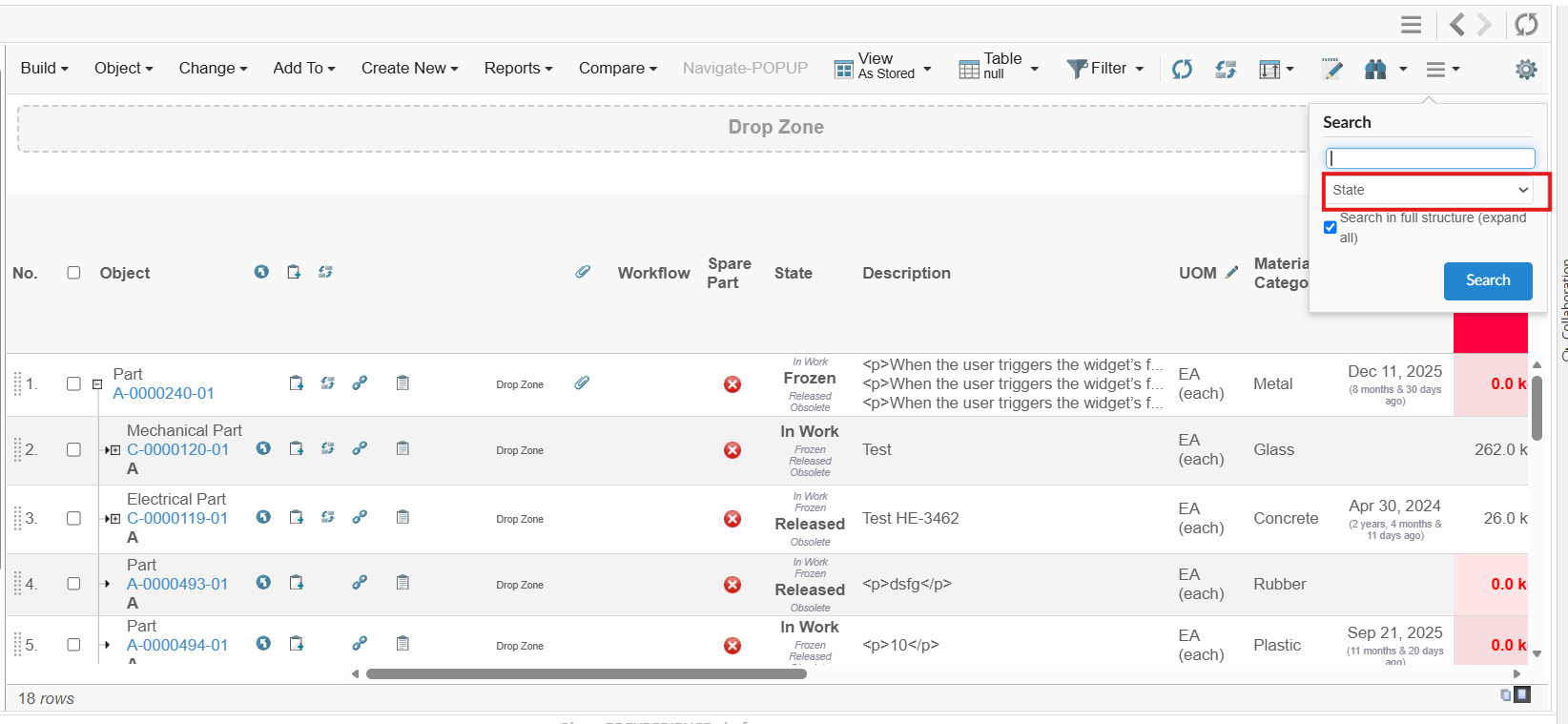
Figure 1. SearchIn
The existing global setting tvc.structurebrowser.searchIn.anyField continues to control whether "Any Field" is available by default.
However, this behavior can now be overridden at the page level through the new searchIn:<columnLabel> configuration, providing greater flexibility and page-specific control over the default Search-In selection.
Refer Searching inside a table/structure chapter for more details.
4. Search
4.1. Relationship field
A new built-in field type RelationshipField has been introduced for the search form. It allows to search for objects connected via a specific relationship.
When a value is searched in a text input field, and the search automatically generates a relationship traversal WHERE clause to filter results to objects connected to matching objects through the configured relationship.
Key capabilities:
-
Configurable relationship and direction — specify which relationship to traverse and in which direction (
from,to, orboth). -
Multi-level traversal — configure
Levelsto traverse multiple levels deep. When levels > 1, all levels from 1 up to the specified depth are included in the search. -
Type and state filters — optionally restrict connected objects by type (
ConnectedTypePattern) or a WHERE clause (e.g.current == Release). -
Symbolic name support —
ConnectedTypePatternvalues such astype_Partare automatically resolved to their actual ENOVIA names.
Example configuration:
<RelationshipField id="connected_part" sectionId="related">
    <Label>Connected Part (EBOM)</Label>
    <Relationship>EBOM</Relationship>
    <Direction>from</Direction>
    <Levels>2</Levels>
    <ConnectedTypePattern>type_Part</ConnectedTypePattern>
    <WhereClause>current == Release</WhereClause>
</RelationshipField>
For example, consider the following structure:
Kit A > Kit B > Article C
Assume the search form is used to find Kit objects, and RelationshipField is configured with Levels set to 2 and ConnectedTypePattern set to Article. When the user searches for C, the field matches Article C. Since the search includes all levels from 1 up to 2, the results include both Kit B, which is directly connected to Article C, and Kit A, which is connected through Kit B.
Refer to the Search Form Configuration documentation for full details.
4.2. Search performance improvement
Previously, NSX built the WHERE clause in the same order as the configured search attributes. As a result, if a complex traversal-based attribute appeared before simpler attributes, it would be evaluated earlier in the generated query. In some cases, this ordering could reduce search performance, particularly when queries involved deep relationship traversals, as the more expensive conditions were processed first.
With this enhancement, NSX automatically optimizes the order of WHERE clause expressions based on their complexity. Simpler conditions are evaluated first, while more complex traversal-based conditions are placed later in the query. This improves search responsiveness and overall query performance without requiring any configuration changes.
4.3. External 6W vocabulary URLs for federated search
The New Search Experience now supports configurable URLs for external 6W Vocabulary API endpoints. Previously, these URLs were hardcoded in the application. With this enhancement, administrators can now customize the endpoints for predicate values, element NLS names, and predicate information from 6W Vocabulary, enabling integration with different 6W Vocabulary instance.
The following properties can be configured in the tvc.properties file:
| Property | Description | Default Value |
|---|---|---|
tvc.core.search.vocab.predicateValueURL |
URL for accessing predicate values from 6W Vocabulary. |
|
tvc.core.search.vocab.elementNLSNamesURL |
URL for accessing element NLS names from 6W Vocabulary. |
|
tvc.core.search.vocab.predicatesURL |
URL for accessing predicate information from 6W Vocabulary. |
|
Refer Federated Search chapter for more details.
5. Workflow
5.1. Deferred trigger notices in workflow
In ENOVIA, triggers are commonly associated with lifecycle events and business operations such as object creation, modification, promotion, demotion, relationship creation, or deletion. While immediate triggers execute as part of the transaction, deferred triggers are queued and executed afterward.
A Deferred Trigger is a trigger that is not executed immediately when a business operation occurs. Instead, the trigger execution is postponed and processed after the primary transaction has been completed successfully.
Deferred triggers are used to improve system performance, reduce transaction time, and handle operations that do not need to be completed as part of the main transaction.
Previously, MQL notices produced by deferred triggers could be missed in the user response because trigger and action results were finalized before those notices became available in the transaction client-task list.
With this release, workflow trigger/action result handling has been improved to merge transaction notice messages both after privileged trigger execution and after commit in workflow service flows. This improves visibility of late trigger notices, especially in scenarios where follow-up operations are executed in deferred trigger timing.
Refer Workflow Trigger and Trigger Configuration for behavior details and configuration guidance.